Introduction
The "Forms" module allows users to create and manage forms. In this section, users can view, create, and edit forms, as well as perform a number of additional actions.
Key Interface Elements
1. Form List
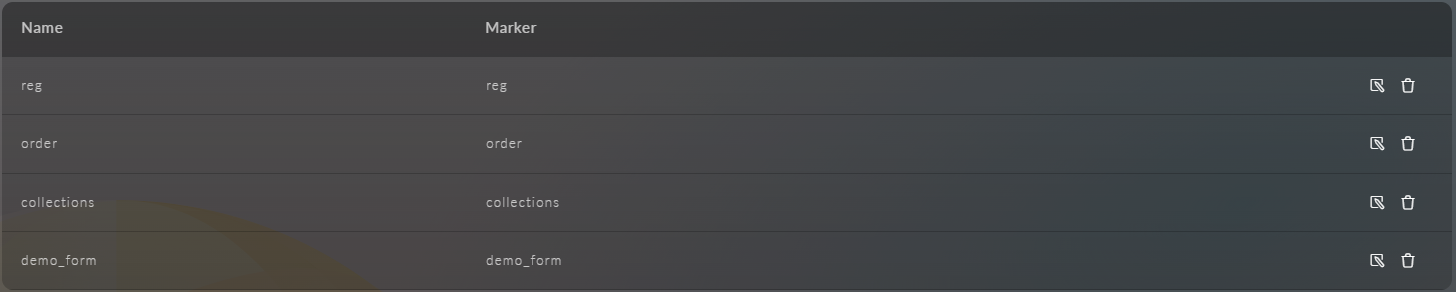
Displays all created forms. Each row in the list corresponds to one form.
The table has the following columns:
- Name - this is the name of the form.
- Marker - this is the unique a unique identifier used to access the entity of each form.
- Actions - actions available for each form, namely:
 Edit
Edit
 Delete
2. Form Creation Form
The form creation form contains two input fields:
- Name - a required field where the name of the form must be entered;
- Marker - a required field where a unique a unique identifier used to access the entity of the form must be entered (only Latin letters and the symbols "_" and "-" are allowed);
Exporting the Form Schema
After creating a form, the export schema in JSON format feature becomes available:
- Click the button
 in the form interface
 - For the "Sign In and Registration" form type, a modal window will first prompt you to select a scenario: Authentication, User Update, or Registration. The schema is built for the selected scenario
- A modal window will open with the complete JSON schema of the form
- Use the "Copy" button to transfer the schema to the clipboard
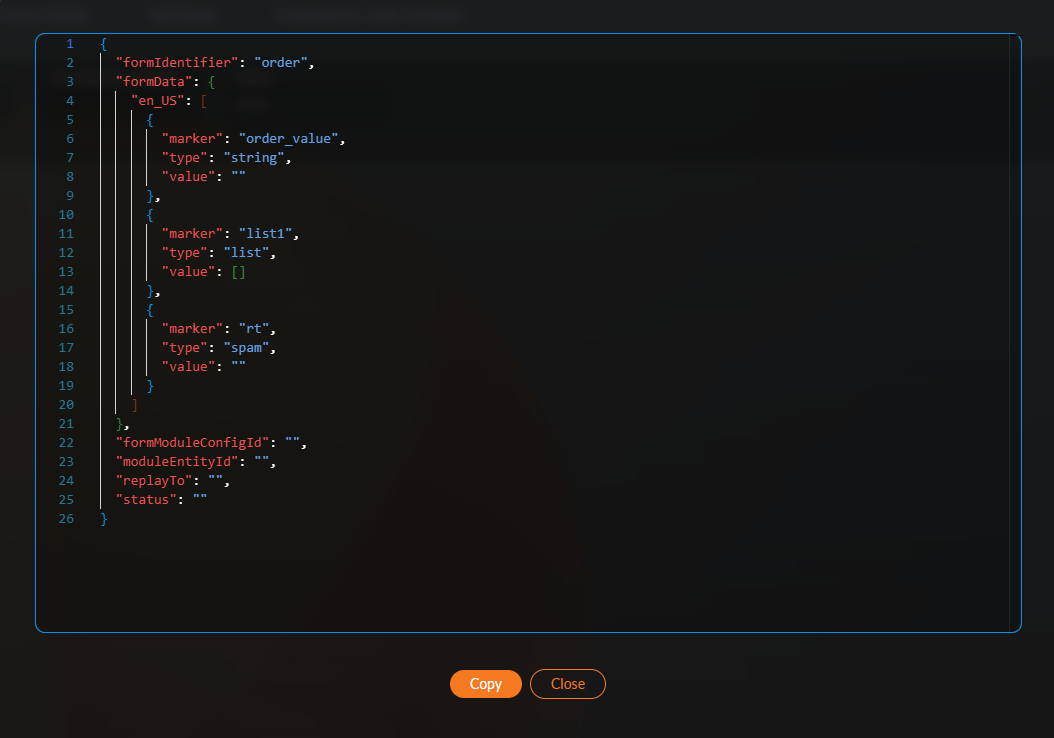
Important: When modifying a form through the interface, always export the current schema, as historical versions are not saved automatically.