Actions for Pages (Screens)
For each or screen in the list, a set of actions is available.
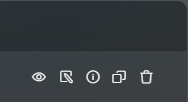
These actions are displayed in the last column of the table (without a header) to the right of each or screen. The following actions are available:
1. Hide Page (Screen)

Allows you to hide the or screen in the application. By clicking on this icon, the or screen will become invisible to end users but will remain editable in the administrative interface. The hidden or screen has the same button called Show — it restores the visibility of the or screen.
2. Edit Page (Screen)

Opens the or screen in edit mode. Here you can change the content of the or screen, its title, and other parameters.
3. Blocks and Forms of the Page (Screen)

The "Blocks and forms" action opens the or screen in edit mode directly on the "Blocks" tab, where blocks are connected to the or screen. If engagement forms are connected to the or screen, their data is also available there, on the "Engagement forms" tab. This action is unavailable if the forms module is disabled or if the administrator does not have permission to modify the or screen. More about blocks can be found in the following chapters (opens in a new tab), and about forms — here (opens in a new tab).
4. Copy Page (Screen)

Creates a copy of the or screen with all its content: attributes, forms, etc. This is useful for creating a new or screen based on an existing one with minimal changes.
5. Delete Page (Screen)

Deletes the or screen. Attention: this action is irreversible. When deleting the or screen, all information on it will be lost.
When deleting a or screen that contains child or screens or products, you will see a modal window:
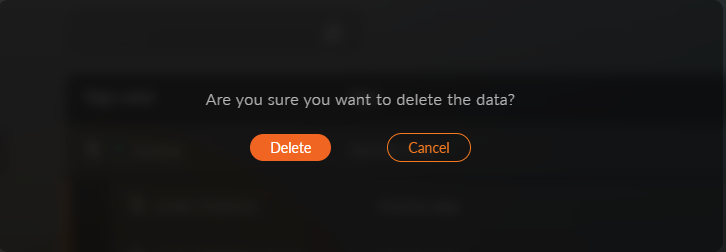
If you choose Delete, another modal window will appear, where you will need to select the type of deletion for the or screen:
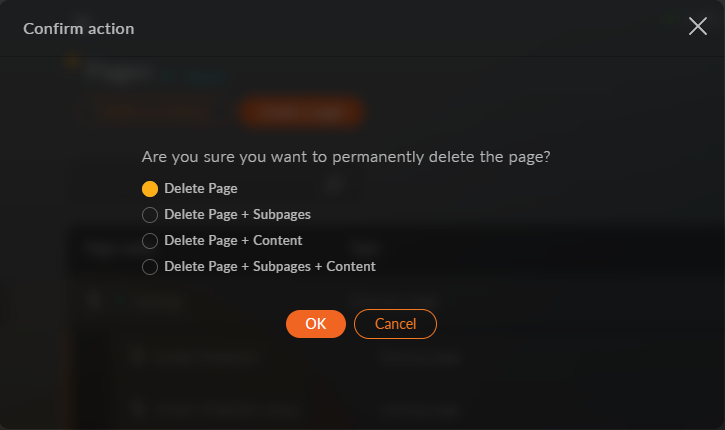
- Delete page will only delete the parent or screen, while keeping all child or screens
- Delete page + Subpages will delete the parent or screen and all child or screens
- Delete page + Content will delete the parent or screen and its nested content, such as products
- Delete page + Subpages + Content will delete the parent or screen, all child or screens, and their nested content, such as products