The telegram node
The telegram node integrates with the Telegram Bot API. A flow can use it to send messages to chats and channels, show Inline buttons, handle button presses, and display pop-up notifications to the user.
telegram node settings
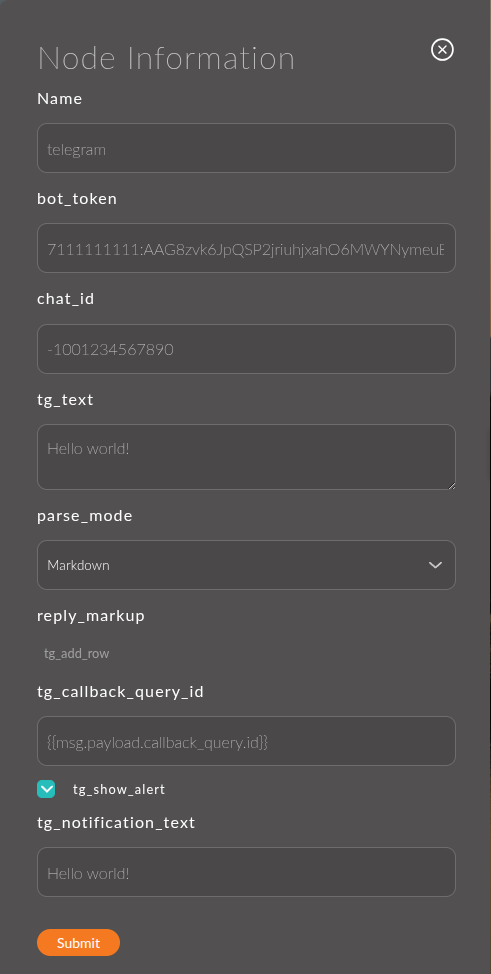
Each heading below gives the field label from the node form, followed in parentheses by the key that stores its value in the JSON schema.
1. Bot Token (botToken)
The token of your Telegram bot, issued by @BotFather.
Supports Mustache, so you can store the token in a flow variable (flow) and insert it with {{variable}}.
Example:
{{flow.telegramToken}}
2. Chat ID (chatId)
The ID of the chat or channel to send the message to.
Supports Mustache. If you leave the field empty, the value is taken from msg.payload.message.chat.id, which is useful when replying to an incoming message from a user.
Example:
{{payload.message.chat.id}}
3. Message text (text)
The text of the message to send.
Supports Mustache, so you can insert data from msg dynamically.
Example:
Your order #{{payload.orderId}} was placed successfully!
4. Text format (parseMode)
The markup mode for the message text. Available options:
- none (default): no formatting; the text is sent as is.
- Markdown: Telegram's basic Markdown (v1).
- MarkdownV2: an extended version of Markdown that supports spoilers and other elements.
- HTML: HTML markup (
<b>,<i>,<code>,<a>, and others).
5. Buttons (replyMarkup)
A builder for Inline buttons shown under the message. Buttons are arranged in rows (Row 1, Row 2, …), and each row contains one or more buttons. Click + Button to add a button to a row, or + Row to add a new row.
For each button, set:
- Text: the button label the user sees.
- callback_data: the value sent to the webhook in
msg.payload.callback_query.datawhen the button is pressed. Use it to tell which button was pressed and route the flow to the right branch with a Switch node.
Example structure:
Row 1: [Confirm | callback_data: confirm]  [Cancel | callback_data: cancel]
Row 2: [More details | callback_data: details]
6. Callback Query ID (callbackQueryId)
The ID of the callback query, required to respond to an Inline button press.
Supports Mustache. If you leave the field empty, the value is taken from msg.payload.callback_query.id.
Example:
{{payload.callback_query.id}}
7. Show as alert (showAlert)
A checkbox, off by default. It sets the type of notification shown in response to a button press:
- Off: a short toast pop-up that disappears on its own.
- On: a modal notification window that the user has to close manually.
8. Notification text (notificationText)
The text of the notification shown in response to an Inline button press.
This field appears in the form only when Show as alert is on.
Supports Mustache.
Example:
Your choice has been accepted: {{payload.callback_query.data}}
Usage examples
Example 1: Send a message about a new order
Flow:
[events: order_created] ---> [telegram]
Node settings:
- Bot Token:
{{flow.telegramToken}} - Chat ID:
{{flow.adminChatId}} - Message text:
New order #{{payload.order.id}} from {{payload.order.userName}}. Total: {{payload.order.totalPrice}} RUB. - Text format:
none
Result:
When a new order is created, the bot sends a notification to the administrator's chat.
Example 2: A message with confirmation buttons
Node settings:
- Chat ID:
{{payload.message.chat.id}} - Message text:
Confirm your order? - Buttons:
Row 1: [Yes, confirm | confirm] [Cancel | cancel]
Result:
The user receives a message with two buttons. Pressing a button sends its callback_data to the webhook, where you can handle it with a Switch node.
Example 3: Respond to a button press with a notification
Flow:
[http in] ---> [switch: callback_data == "confirm"] ---> [telegram: response with notification]
Node settings:
- Callback Query ID: (leave empty; the value is taken from
msg.payload.callback_query.id) - Show as alert: on
- Notification text:
Order confirmed!
Result:
The user sees a pop-up with the text "Order confirmed!" and has to close it manually.